
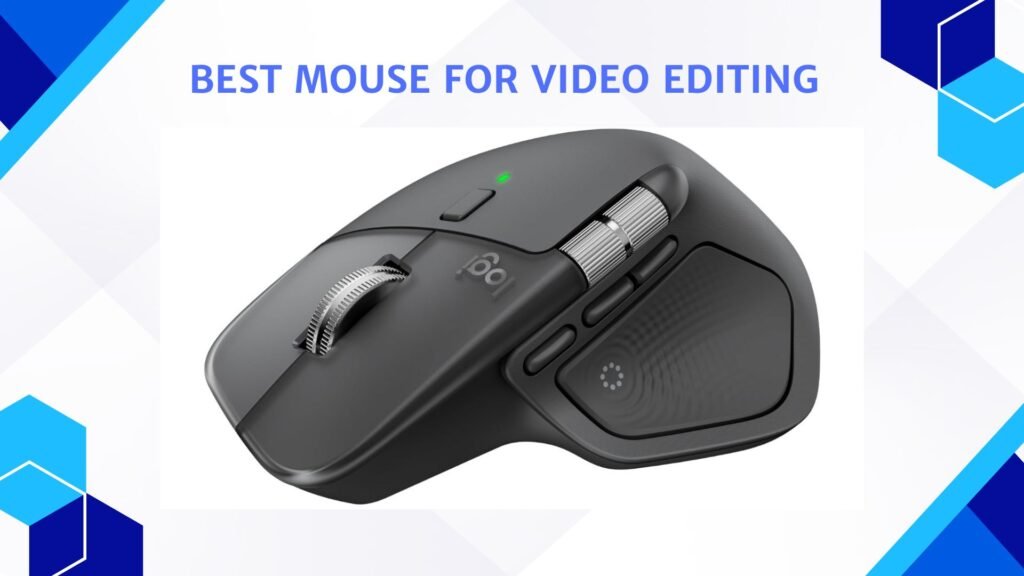
Last Updated on May 15, 2026 by Jawad
Introduction
A mouse for video editing is one of the most important tools for anyone who works with videos on a computer. Video editing involves a lot of clicking, dragging, scrolling, and precise movements on the timeline. A regular office mouse can work, but it may feel slow, uncomfortable, or tiring during long editing sessions. That is why many editors prefer a mouse that is specially suited for creative and professional work.
We also have a recommendation for the Best MMO Gaming Mice, so make sure to check that out too!
Top Mouse for Video Editing


Comparsion
| Mouse | Image | Rating | DPI | Buttons | Connectivity | Special Feature | Best For | Buy |
|---|---|---|---|---|---|---|---|---|
|
Logitech MX Master 4 🏆 Best Overall 🔥 Top Pick |
 | ★★★★★ | Up to 8000 DPI | 7–8 Buttons | Bluetooth + USB | MagSpeed Scroll + Side Wheel | Professional Editing | Check Price |
|
Rapoo MT760 Multi-Device Mouse 💰 Best Value |
 | ★★★★☆ | Up to 4000 DPI | 11 Buttons | Bluetooth + 2.4GHz | Multi-device (4 devices) | Productivity & Editing | Check Price |
| Keychron M6 Wireless Mouse |
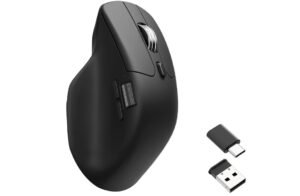 | ★★★★☆ | Up to 26000 DPI | Customizable | Wireless + Wired | Dual Scroll Wheels | High Precision Work | Check Price |
| TECKNET Wireless Mouse |
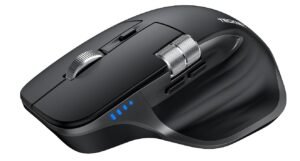 | ★★★☆☆ | Up to 4000 DPI | 6 Buttons | Bluetooth + USB | Adjustable DPI | Beginners | Check Price |
| acer Ergonomic Wireless Mouse |
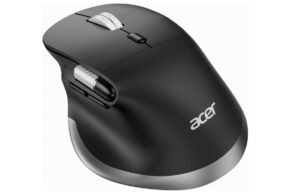 | ★★★★☆ | Up to 4800 DPI | 6–8 Buttons | Bluetooth + USB | Ergonomic Design + Side Scroll | Comfort & Long Use | Check Price |
| CITLLA Wireless Bluetooth Mouse |
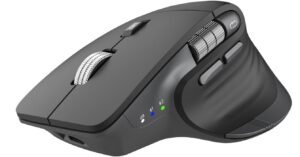 | ★★★☆☆ | Adjustable DPI | Standard | Bluetooth | Silent Clicks | Basic Editing | Check Price |
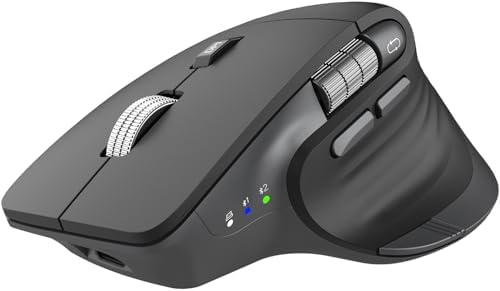
Logitech MX Master 4, Ergonomic Wireless Mouse
Logitech MX Master 4, Ergonomic Wireless Mouse
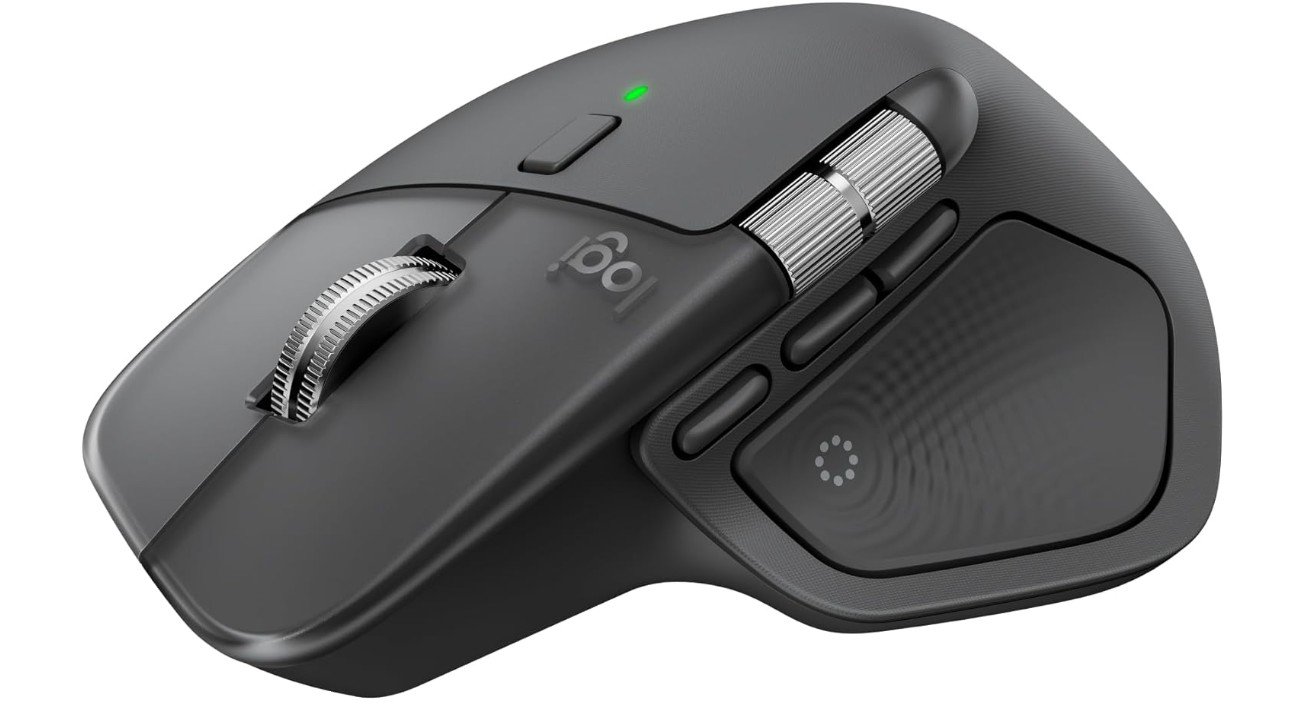
The Logitech MX Master 4 is an outstanding mouse for video editing thanks to its ergonomic design, advanced controls, and productivity-focused features. Its MagSpeed scroll wheel feels extremely smooth for navigating long timelines in Premiere Pro, DaVinci Resolve, and Final Cut Pro, while the horizontal scroll wheel makes timeline movement much faster and more precise.
The customizable buttons and gesture controls help speed up editing workflows, especially when paired with Logi Options+ software. Its comfortable shape is excellent for long editing sessions, and the haptic feedback adds a premium feel during navigation.
Overall, the MX Master 4 is one of the best productivity mice available for professional video editors and content creators.
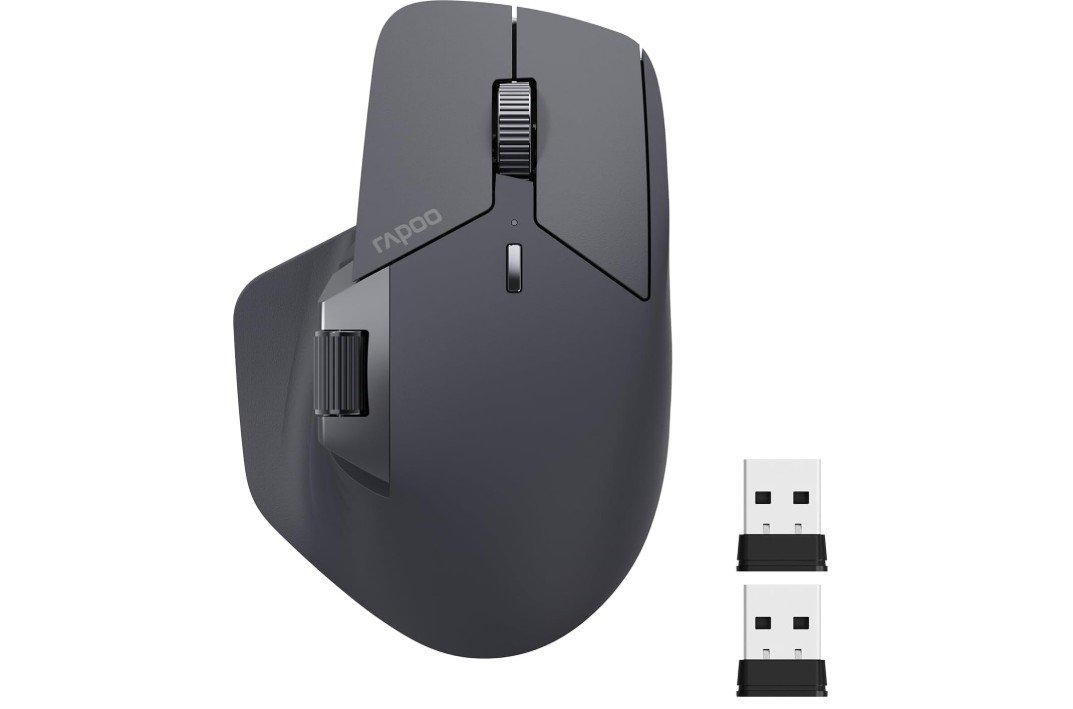
Rapoo MT760 Multi-Device Wireless Mouse
Rapoo MT760 Multi-Device Wireless Mouse
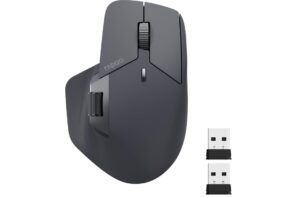
The Rapoo MT760 is an excellent productivity mouse for video editing thanks to its ergonomic design, multi-device connectivity, and customizable controls. Its comfortable shape with thumb support feels natural during long editing sessions, helping reduce wrist fatigue while working in Premiere Pro, DaVinci Resolve, or Final Cut Pro.
The side scroll wheel is especially useful for navigating timelines horizontally, while the 11 programmable buttons can speed up editing workflows with shortcuts and macros. Bluetooth and 2.4GHz connectivity make switching between devices easy, and the long battery life is convenient for daily use.
Overall, the MT760 offers strong value, comfort, and productivity-focused features for video editors.
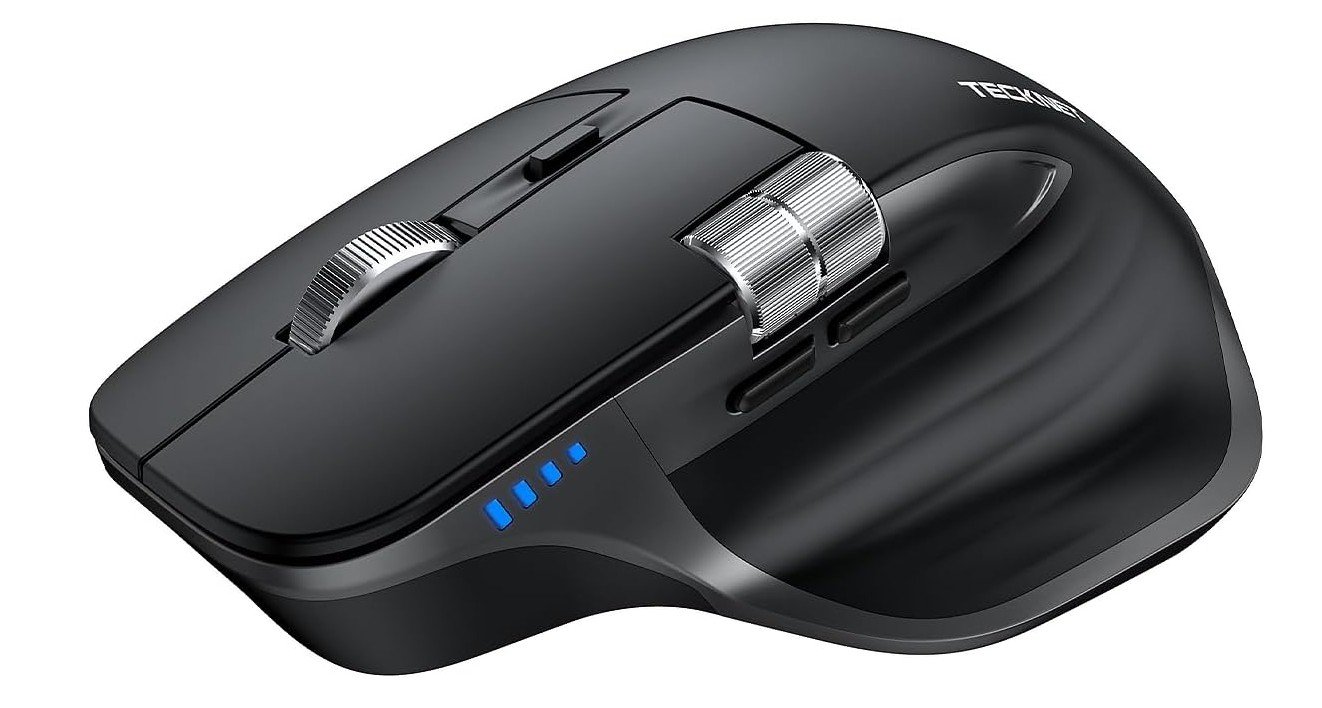
TECKNET Wireless Mouse
TECKNET Wireless Mouse
The TECKNET Wireless Mouse is a practical and budget-friendly option for video editing and everyday productivity work. Its ergonomic shape feels comfortable during long editing sessions, while the side scroll feature is especially useful for navigating video timelines and large editing projects. The quiet click buttons create a more distraction-free workspace, which is ideal for studios and office environments.
With Bluetooth and 2.4GHz connectivity, switching between devices is simple and convenient for multi-device setups. The adjustable DPI settings provide smooth cursor control for detailed editing tasks, and the rechargeable battery adds extra convenience.
Overall, it offers solid comfort, productivity features, and great value for video editors and content creators.
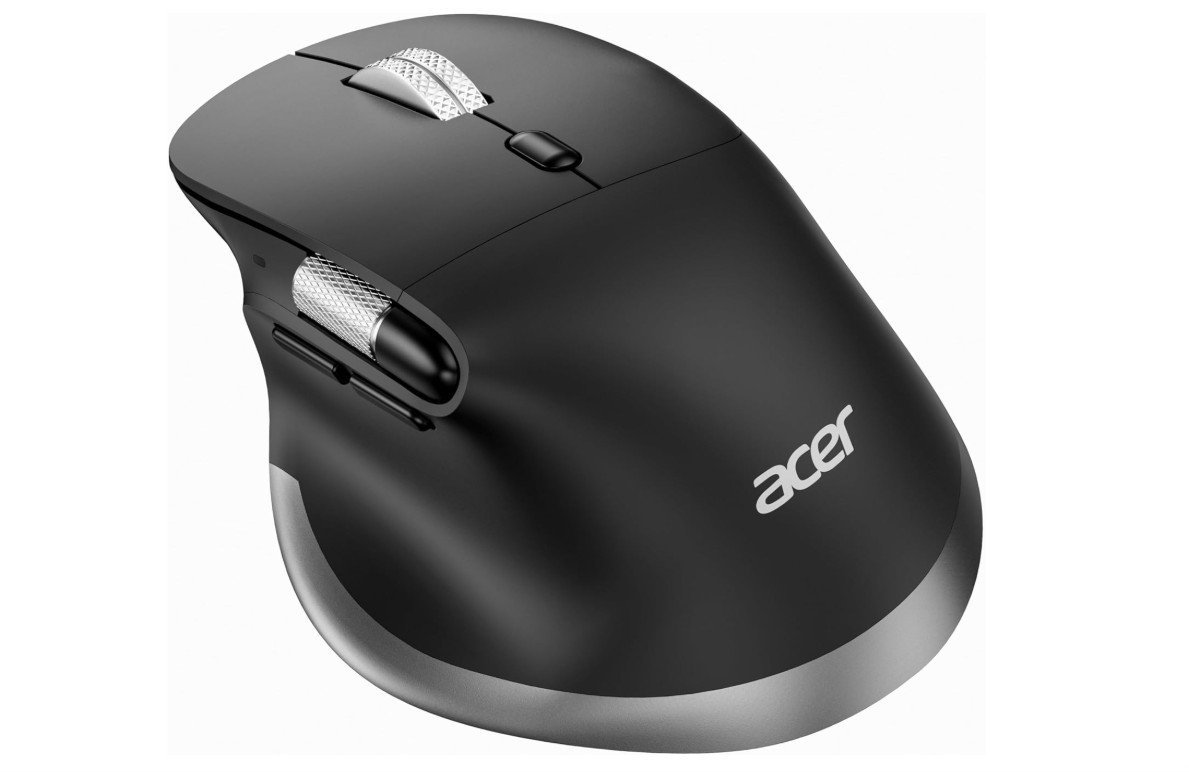
acer Ergonomic Mouse
acer Ergonomic Mouse
The Acer Ergonomic Wireless Mouse is a solid productivity-focused mouse for video editing thanks to its comfortable ergonomic design and useful workflow features. The side scroll wheel is especially helpful for navigating video timelines horizontally in editing software like Premiere Pro and DaVinci Resolve, making timeline control feel smoother and faster.
Its ergonomic shape supports medium to large hands comfortably during long editing sessions, helping reduce wrist strain. The adjustable DPI settings provide precise cursor control for detailed editing work, while Bluetooth and 2.4GHz connectivity allow easy multi-device switching.
Overall, it offers excellent comfort, convenient controls, and strong value for video editors and content creators.
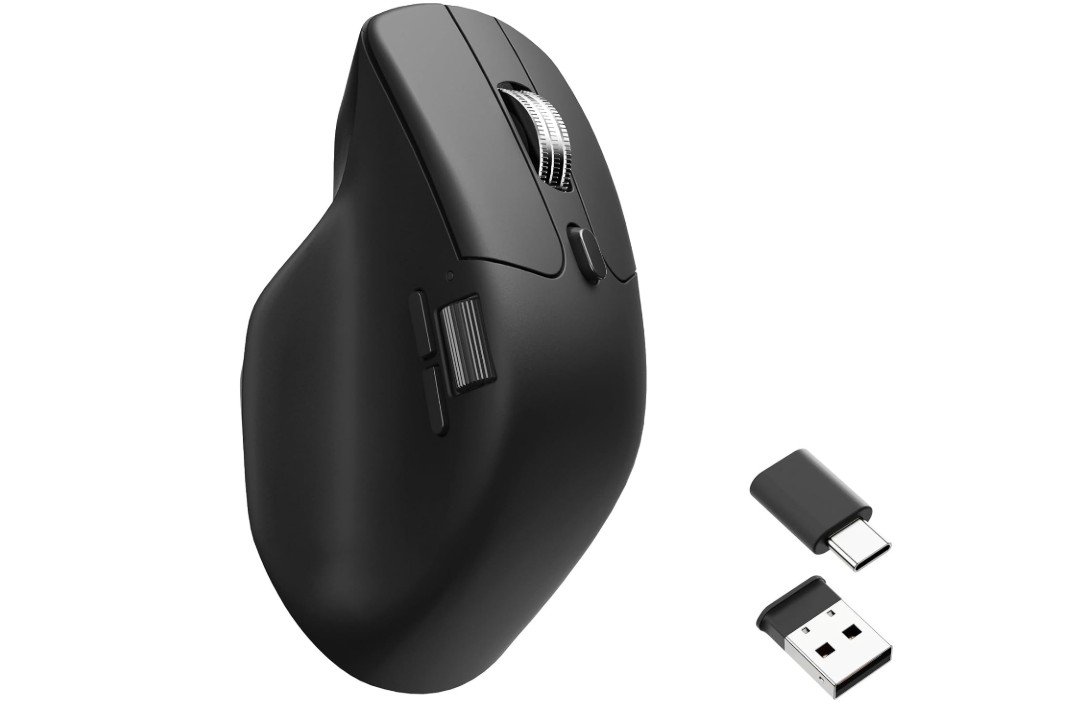
Keychron M6 Silent Wireless Gaming Mouse
Keychron M6 Silent Wireless Gaming Mouse
The Keychron M6 Silent Wireless Gaming Mouse is an excellent hybrid mouse for video editing, productivity, and casual gaming. Its ergonomic design with thumb support feels very comfortable during long editing sessions, while the dual scroll wheels make navigating timelines and large projects much faster and smoother.
The silent switches create a quieter workspace, which is ideal for studio environments and focused editing work. Its PixArt 3395 sensor delivers highly accurate tracking with up to 26K DPI, and the tri-mode connectivity offers flexible wireless and wired use across Windows, Mac, and Linux systems.
Overall, the M6 combines productivity features, comfort, smooth scrolling, and gaming-level performance extremely well.
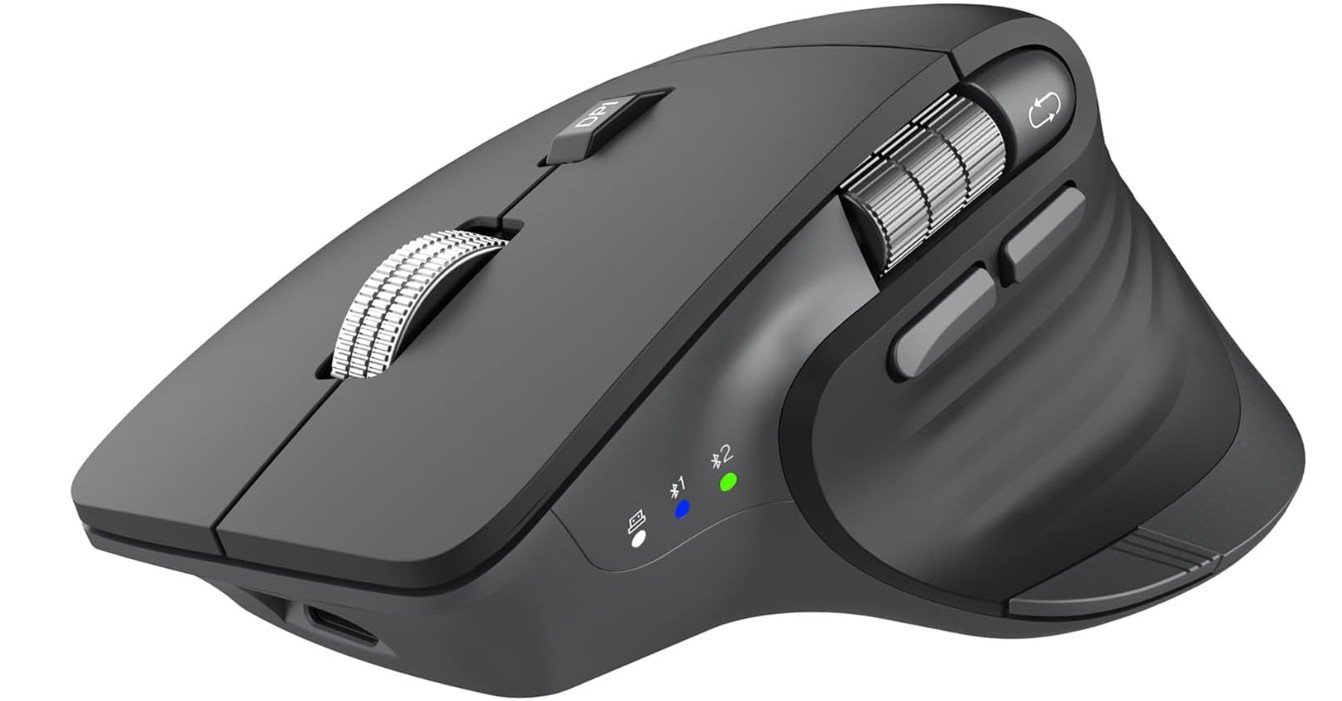
CITLLA Wireless Bluetooth Mouse
CITLLA Wireless Bluetooth Mouse
The CITLLA Wireless Bluetooth Mouse is a strong productivity-focused mouse for video editing thanks to its ergonomic design and workflow-friendly features. The flying scroll wheel and thumb wheel make navigating long video timelines much faster and smoother in editing software like Premiere Pro and DaVinci Resolve.
Its silent buttons create a quieter workspace, which is useful for studios and editing environments. The ergonomic shape feels comfortable during long editing sessions, helping reduce wrist fatigue. Multi-device connectivity through Bluetooth and 2.4GHz wireless is also convenient for creators using multiple systems.
Overall, the CITLLA mouse offers excellent comfort, smooth scrolling, and useful productivity features for video editors and content creators.
Buying guide — Mouse for video editing
Choosing the right mouse for video editing can greatly improve your speed, comfort, and accuracy. Video editing involves long hours of clicking, dragging, scrolling through timelines, and making precise adjustments. A good mouse helps reduce fatigue and makes your workflow smoother and more efficient.
Why a Dedicated Mouse for Video Editing Matters
Video editing is different from normal computer use. You constantly scrub through timelines, cut clips, move layers, and fine-tune details. A basic office mouse can feel slow and uncomfortable over time. A mouse designed for productivity or creative work offers better ergonomics, smoother scrolling, customizable buttons, and more accurate tracking. These features save time and reduce strain on your hand and wrist during long editing sessions.
Ergonomics and Comfort
Comfort should be your top priority. Look for a mouse with an ergonomic shape that supports your palm and keeps your wrist in a natural position. A thumb rest and curved design help reduce hand fatigue. If you often experience wrist pain, vertical mice or trackball mice can be good alternatives because they reduce wrist movement. Choosing the right size is also important, as a mouse that is too small or too large can feel uncomfortable over time.
Scroll Wheels and Timeline Navigation
Scrolling is a big part of video editing. A smooth and responsive scroll wheel makes it easier to move through long timelines. Many editing-focused mice include horizontal scrolling or a thumb wheel, which is very useful for moving left and right across video tracks. Some mice also offer free-spin or ultra-fast scrolling modes, letting you quickly jump through large projects.
Programmable Buttons and Shortcuts
Extra programmable buttons can greatly speed up your workflow. You can assign common actions like cut, undo, redo, zoom, or play and pause directly to the mouse. This reduces the need to use the keyboard and keeps your focus on the timeline. Mice that support app-specific profiles are even better, as buttons can change functions automatically depending on the software you are using.
Sensor Accuracy and DPI
For video editing, precision matters more than extremely high DPI. A reliable optical sensor with smooth tracking is ideal for accurate cursor control. Adjustable DPI is helpful so you can switch between fast movement and slow, precise control depending on the task. Stable tracking is especially important when making fine edits or working with keyframes.
Connectivity and Battery Life
Wireless mice are popular for video editing because they keep your desk clean and offer flexibility. Bluetooth and 2.4 GHz wireless options provide stable connections, while wired mode ensures zero interruptions. Long battery life and fast USB-C charging are important so your mouse does not die during an editing session. Multi-device support is useful if you work on more than one computer.
Software and Customization
Good software support is essential. The mouse software should be easy to use and allow you to remap buttons, adjust DPI, create macros, and set profiles for different apps. Simple and reliable software saves time and helps you get the most out of your mouse.
Special Mouse Options for Editors
Some editors prefer trackballs because they reduce arm movement and offer precise control. Others use jog wheels or dedicated editing controllers for smoother timeline scrubbing. Lightweight mice are easier to move during long sessions, while heavier mice can feel more stable for detailed work.
Budget Considerations
Premium mice usually offer the best ergonomics, scrolling, and customization, making them ideal for professional editors. Mid-range mice often provide good sensors and programmable buttons at a lower price. Budget mice focus on comfort and basic features and are suitable for beginners or casual editors.
Final Tips
Always match your mouse choice to your editing style and software. If you spend a lot of time scrubbing timelines, prioritize scrolling features. If you work long hours, comfort should come first. Investing in a good mouse can improve productivity, reduce strain, and make video editing a more enjoyable experience.
FAQs
You don’t have to, but a mouse with smooth scrolling, programmable buttons, and good ergonomics can make editing faster and more comfortable than a basic office mouse.
Look for ergonomic design, smooth vertical and horizontal scrolling, customizable buttons, adjustable sensitivity (DPI), and stable connectivity (wireless or wired).
Yes — modern wireless mice are reliable with long battery life. But wired mice can be slightly more responsive and never need charging, which some editors prefer.
Yes. Many gaming mice have high precision sensors and programmable buttons that are also useful for editing.
Mice with programmable buttons, smooth scroll wheels, and customizable profiles work best. Many editors like the Logitech MX Master series or similar productivity-focused mice.
Conclusion
Choosing the right mouse for video editing can make a big difference in how comfortable and efficient your work feels. A good mouse helps you move through timelines smoothly, make precise edits, and work for long hours without hand or wrist pain. Features like ergonomic design, smooth scrolling, programmable buttons, and reliable tracking all play an important role in improving your workflow. Whether you are a beginner or a professional editor, investing in a mouse that matches your editing style and daily needs will help you work faster, stay comfortable, and focus more on creativity instead of controls.

Jawad is a passionate tech enthusiast and writer who loves exploring the latest trends in hardware, gadgets, and digital innovation. With a sharp eye for performance and value, he delivers in-depth recommendations and buying guides to help readers make smarter tech decisions.